Explorer view in big libraries, that have huge number of documents, does not load. It gives you following error:

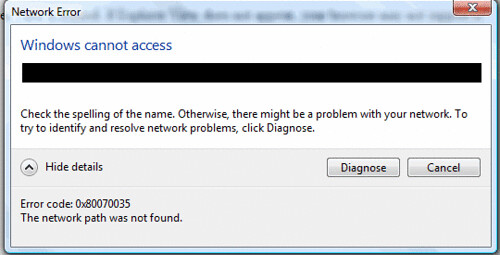
After some time, you get the following network error:

| InfoPath Tip: Managing older versions | ||
| Here is a small tip to manage older versions of InfoPath forms. This is a very simple tip and the solution is available out-of-the-box but unfortunately, InfoPath developers usually ignore this built-in feature and face problems after deploying the updated forms. You may have noticed that you get "Schema validation errors found" when opening an updated form. In fact, the form fails to open and it is difficult to locate the data sources that cause the problem. This question is asked frequently in the forums where users ask for solutions to fix the problem. Some users manually upgrade the XML of existing forms to make them compatible with the new template. In the "Form Options", inside "Versioning" category, there is an option to manage version upgrades.  The drop down has three options: > Do nothing (existing forms might not work properly) > Automatically upgrade existing forms > Use custom event By default, the first option "Do nothing ..." is selected. Select the second option "Automatically upgrade existing forms" and save changes. Publish your form. This will automatically upgrade the existing forms and you won't have to update their XML manually which can be quite cumbersome if the library contains hundreds or thousands of forms which is a common scenario in big companies. Some times, it is necessary to keep the existing forms as they are and upgrade them manually if need be but that is rare. User can also take advantage of "Use custom event" option. This will add an event handler to the form where you can add your own custom code but this will be useful only if you know what changes you had made in the form. You can read more about it at http://msdn.microsoft.com/en-us/library/microsoft.office.infopath.formevents.versionupgrade.aspx. For example, you can check the version number of the form being opened and the version number of the template and if the form's version is older than the template's version then you can use custom code to handle the situation. For example, the following will give you the version numbers:
Another option is to add checks in the form using code. Suppose you added a new data source in the form. This data source will not be available in the forms based on the older template. You can check for the existence of the data source/node programmatically and handle business logic accordingly. For example, here is some sample code:
You simplly check the existence of the data source by comparing it to "null". If it's not null (node exists), run new logic for the new form else skip the new logic to keep the old forms intact. |

