A Practical Guide to SharePoint 2013

A Practical Guide to SharePoint 2013
A Practical Guide to SharePoint 2013 - Book by Saifullah Shafiq
Showing posts with label MOSS 2007. Show all posts

Wednesday, August 24, 2011

Resolved: The given assembly or codebase was invalid error by stsadm command (Via dhondiyals)

Extract from the original post “I was trying to register custom profiledeletehandler by using stsadm command line utility. My command, code and assembly were perfect. But even then when I was trying to execute stsadm then it was displaying “The given assembly or codebase was invalid”.

Humnnn what could be the problem then after doing some research I came to know that I wrote the part of the command in notepad first and then copy/paste this part in command line. OMG, that was some encoding problem while copy/pasting the command.

Complete post here.

Friday, February 23, 2007

r.a.d.editor for MOSS - review with screenshots

telerik r.a.d.editor for MOSS
r.a.d.editor is a cross-browser rich text editor. Read more ...
Editor comes with a complete help manual (chm file). Help contains detailed installation and configuration instructions (with screenshots). Installation is very easy. Following screenshot shows how the editor looks when added to the page. Click the arrow and select "Modify Shared Web Part".
Click anywhere in the editor to view it in "edit" mode. Edit mode shows all buttons. I don't know why but some buttons are missing in my editor.
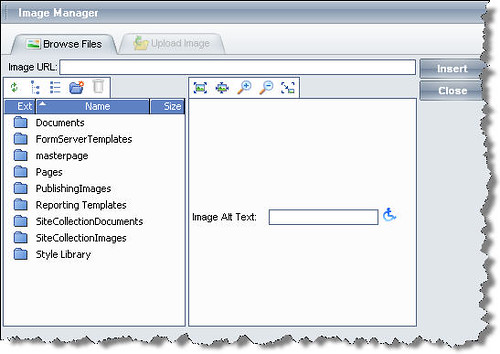
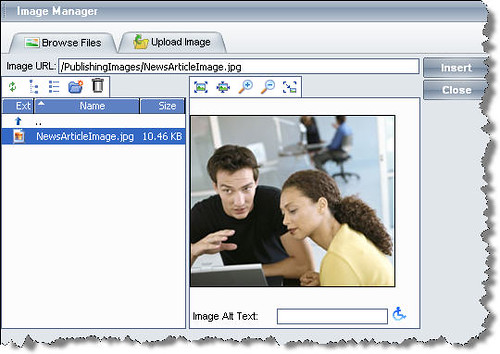
Here is how the image manager looks (Click the image button in the tool bar):
It shows all folders in the SharePoint site and you can browse the folders to select an image. Image preview is available.
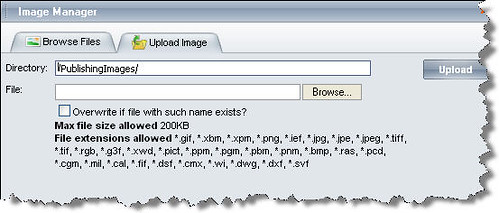
You can also upload your own files:
Select a directory in "Browse Files" and then click "Upload Image" and browse your local folders to select a file.
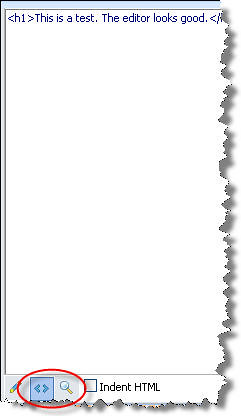
You can also view the HTML:
The button in the center is for HTML viewing and the third button shows the preview. Index HTML shows indented HTML. The toolbar disappears when you work in the HTML mode.
This is how the content is shown in IE:
and this is how it is shown in Mozilla Firefox:
Not very different from what is seen in IE, just some blank space is added when viewed in Firefox! :)
The overall performance is very good. Editor has all the major functionality required for editing content and displaying it in SharePoint.
---------------- 
Update:
Originally posted: Fri, Feb 23, 2007
Reposted: Aug 26, 2007
Some of the links might not work as this version was retrieved from a web archive. If you find any dead links, kindly send an email to share.point@yahoo.com with the URL of this page. Thank you!
-------------------------

Wednesday, February 7, 2007

MOSS 2007: Displaying library items for a specific time period.

MOSS 2007: Displaying library items for a specific time period.
Problem: Displaying library items for a specific time period.
Scenario: Display new items in a library for 7 days. The items should disappear from the library automatically after 7 days.
Solution:
1. Open the document library where you want to make the changes.
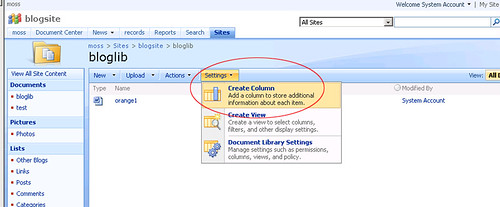
2. Select Create Column from  the Settings dropdown.

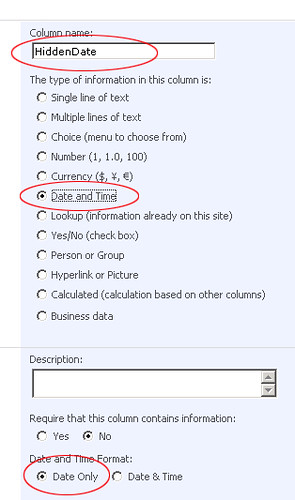
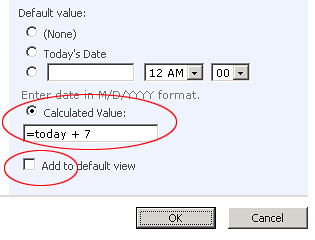
3. Enter "HiddenDate" in the Column name and select "Date and Time" as the type of information for this column. Date and Time Format should be "Date Only". Default Value should be a calculated value. Add "=Today + 7" in the Calculated Value field. Clear the Add to default view check box. Click OK to save the settings.


4. Next step is to add a filter. You can add a filter to the current view or you can create a new view for this task. Select Modify this View from the "View" drop down.

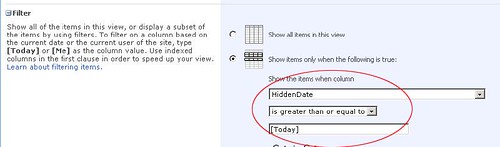
5. To add a filter to the selected view, select "Show items only when the following is true". Select HiddenDate from the columns drop down. Select is greater than or equal to from the conditions' drop down and enter [Today] in the parameter box. Click OK to save the changes.

6. Now, go back to the  main page and  you will notice that all documents older than 7 days have disappeared.
Published Wednesday, February 07, 2007 5:38 PM by ssa

Comment Notification

If you would like to receive an email when updates are made to this post, please register here
Subscribe to this post's comments using RSS

Comments


Mike Walsh's WSS and more said:

February 11, 2007 1:59 AM

Specifying the Maximum File Size That MOSS Can Crawl (via SharePointed)


The following post discusses a technique (registry entry) to make SharePoint crawl and index files larger than 16MB.
"Increasing the file size may cause a timeout exception because the crawler can timeout if the file takes too long to crawl/index." See the post for the solution to the time out problem.

Adding a field to the document library template - MOSS 2007

Note: Don't forget to make backup copies of the files you modify in this tip.
1. Open schema.xml file for the document library that is located in the following path:
LocalDrive:Program FilesCommon FilesMicrosoft Sharedweb server extensions12TEMPLATEFEATURESDocumentLibraryDocLib
2. Locate <Fields> tag and add following field inside the <Fields> tag:
  <Field ID="{20487AC7-D872-4B10-ACB8-CF3002C29687}" Type="Text" Name="MyField" ShowInNewForm="FALSE" ShowInFileDlg="FALSE" DisplayName="$Resources:core,MyField;" Filterable="TRUE" Sortable="TRUE" Sealed="TRUE"  SourceID="http://schemas.microsoft.com/sharepoint/v3" StaticName="MyField"><!-- _locID@DisplayName="camlid2" _locComment="  " -->
      </Field>
Field ID should be unique. Run Select NewID() in SQL Query Analyzer to get a new GUID and use it as the field ID.
3. Open core.en-US.resx file located in the following path:
LocalDrive:Program FilesCommon FilesMicrosoft Sharedweb server extensions12Resources
4. Locate following tag in the file:
  <!-- shared resources -->
and add following lines in this section (shared resouces section)
  <data name="MyField">
    <value>My Demo Field</value>
  </data>

5. Save the changes and reset IIS. Next time when you will create a document library, this field will be a part of your document libray.
I once blogged about creating site definitions in SPS 2003. Things have changed a lot in version 2007 but this time we have lot of help available in the form of blogs, forums, etc. If you want to learn more about site definitions in 2007, read following excellent articles by Todd Baginski:

-SSA
Published Wednesday, February 07, 2007 6:01 PM by ssa

Comment Notification

If you would like to receive an email when updates are made to this post, please register here
Subscribe to this post's comments using RSS

Comments


Mike Walsh's WSS and more said:

February 11, 2007 1:59 AM

Friday, January 12, 2007

MOSS 2007 and Code Access Security

MOSS 2007 and Code Access Security
Have you ever written a web part or a web service? If yes then you must have dealt with a security problem. Writing a web part or web service may not be a big issue but deploying them is certainly a headache. You start getting permission errors as soon as you deploy your code on the server. I recently wrote an article demonstrating the web service creation process and I promised in that article that I would write about Code Access Security (CAS) in another article. There are three ways to assign execution permissions to your code:
1. Increase the trust level for the entire virtual server
2. Create a custom policy file for your assemblies
3. Install your assemblies in the GAC
In the article, we installed our assembly in the GAC but the safest method is to create a custom policy file for the assembly. Following article on MSDN contains complete details on code access security:
Written in July 2003, this is one of the most comprehensive articles written on "SharePoint and Code Access Security".
For security reasons, the assembly must be installed in the bin directory of the application instead of GAC but installing it in the bin directory requires you to assign execution permissions to the assembly. One way is to increase the trust level of the entire virtual server. This is easy to implement but this option is least secure as it affects all assemblies used by that virtual server. Second way is to create a custom policy file and this is the recommended approach. This option is most secure but difficult to implement. In this article, we will create a custom policy file for an assembly (web service assembly) written for MOSS 2007.
Creating a Custom Policy File
1. Go to the following location on the server:
LocalDrive:Program FilesCommon FilesMicrosoft Sharedweb server extensions12CONFIG
2. Make a copy of wss_minimaltrust.config and rename it wss_customtrust.config.
3. Open wss_customtrust.config file using any text editor.
4. Under the <SecurityClasses> element, add a reference to the SharePointPermissions class as follows:

<SecurityClass Name="SharePointPermission" Description="Microsoft.SharePoint.Security.SharePointPermission, Microsoft.SharePoint.Security, Version=12.0.0.0, Culture=neutral, PublicKeyToken=71e9bce111e9429c" />
5. Search for the <PermissionSet> tag where the name attribute equals ASP.NET. If you couldn't find that <PermissionSet> tag, locate the one that has SPRestricted in the name attribute.
6. Copy the entire tag and all of its children, and paste a copy of it immediately below the one you copied.
7. Change the name of the PermissionSet element from ASP.NET (or SPRestricted) to CustomTrust.
Before:

<PermissionSetclass="NamedPermissionSet"version="1"Name="SPRestricted">
After:

<PermissionSetclass="NamedPermissionSet"version="1"Name="CustomTrust">

8. Add the following <IPermission> node to the <PermissionSet> element where the name attribute equals CustomTrust:

<IPermission class="SharePointPermission" version="1" ObjectModel="True" />
Therefore, the resulting customized <PermissionSet> will look as follows:
<PermissionSet
class
="NamedPermissionSet"
version
="1"
Name
="CustomTrust">
<IPermission class="AspNetHostingPermission"
version
="1" Level="Minimal"
/>
<IPermission class="SecurityPermission"
version
="1" Flags="Execution"
/>
<IPermission class="WebPartPermission"
version
="1"
Connections
="True"
/>

<IPermission class="SharePointPermission" version="1" ObjectModel="True" />
</
PermissionSet>
9. Once you define the customized element, you must create a code group to specify when the CLR should apply the permission set. (For details, see the original Microsoft article). Locate <CodeGroup> tag where the class attribute equals FirstMatchCodeGroup and copy following CodeGroup immediately below it:

<CodeGroup class="UnionCodeGroup" version="1" PermissionSetName="CustomTrust">
<
IMembershipCondition class="UrlMembershipCondition" version="1" Url="$AppDirUrl$/bin/*" />
</
CodeGroup>
The membership condition for this new code group is based on URL membership and the URL points to the bin directory. The permissions will be applied to all the assemblies in the bin directory of the current application. You can also use strong name membership but then the permissions will  be applied only to one assembly. For example, if I have written a web service and I wanted to assign permissions to my assembly only, I would use strong name membership. Copy following code immediately below the <CodeGroup> tag where the class attribute equals FirstMatchCodeGroup, if you want to use strong name membership:
<CodeGroup class="UnionCodeGroup"
version="1"
PermissionSetName="CustomTrust">
<IMembershipCondition class="StrongNameMembershipCondition"
version="1"
PublicKeyBlob="0x00240000048000009400000006020000002400005253413100040000010001004"
Name="UploadService" />
</CodeGroup>
Replace PublicKeyBlob value with your own value and change the name of the assembly in the Name attribute. Name attribute contains the name of the assembly. To retrieve the public key blob for an assembly, use the secutil.exe tool. Please note that publickeyblob is different from publickeytoken. Secutil.exe is located in the following folder:
LocalDrive:Program FilesMicrosoft Visual Studio 8SDKv2.0Bin
To retrieve the public key blob for your assembly, either copy the secutil.exe tool to the folder that contains your assembly else provide exact path to the assembly in the command, and run the tool as follows:
secutil.exe -hex -s UploadService.dll > blob.txt
UploadService.dll is the name of the assembly. This command will create a text file named blob.txt. Open blob.txt and copy the public key and paste it in the publickeyblob attribute.
10. Save and close the file. The policy file is ready to use.
11. Open the web.config file for the virtual server where you have deployed your component and add the following <trustlevel> tag to the SecurityPolicy element:
 <trustLevel name="WSS_Custom" policyFile="LocalDrive:Program FilesCommon FilesMicrosoft SharedWeb Server Extensions12configwss_customtrust.config" />
Virtual Directories for web applications are located in the following folder:
LocalDrive:InetpubwwwrootwssVirtualDirectories
Suppose I want to deploy my web service in the web application configured at port 17316. The URL of that application would be http://localhost:17316/ and its virtual directory will be:
LocalDrive:InetpubwwwrootwssVirtualDirectories17315
Create a bin folder in this path and copy your assembly to the bin folder. The web.config for this virtual server will be located in the following folder:
LocalDrive:InetpubwwwrootwssVirtualDirectories17315
In the web.config file,  change the <trust> tag so that it refers to the newly defined trust level.
<trust level="WSS_Custom" originUrl="" />
12. Save and close the web.config file.
13. Restart IIS to apply the custom policy to the specified virtual server.
====
Comments:
   

Di niente, di meno, sul mondo dell'informatica.... said:

January 25, 2007 8:20 AM
   

Di niente, di meno, sul mondo dell'informatica.... said:

January 25, 2007 9:49 AM
   

deeptyranjan said:

It will be very much usefull if it will display all the detail and complete structure of MOSS 2007 object model

SharePoint 2007 Object Model

It's very urgent  !!!

If anybody have any Idea Please let me know.
February 8, 2007 3:30 AM
   

Ryan said:

This was very helpful. After following the steps listed in your post I get the following exception when running my application:

"System.IO.FileLoadException: The given assembly name or codebase was invalid. (Exception from HRESULT: 0x80131047)".

Any ideas?

February 9, 2007 2:05 PM
   

ssa said:

Hi Ryan,

Thanks for reading and liking the article. The error you are getting has nothing to do with the code access security. This error occurs when path to your assembly is longer than 255 characters. Make the path shorter to get rid of this error. There are a couple of good links on google that discuss this issue in detail. Here are a couple of links for your convenience:


Hope this helps. Let me know if this does not solve your problem.

Good luck

Regards,

SSA
February 10, 2007 2:38 AM
   

Abhishek Agrawal said:

It is very useful and comprehensive article for deploying/developing ASP.NET application in sharepoint
February 13, 2007 5:26 AM
   

Pedro Rainho said:

I have used your Sample Custom Policy File and i have looked at the microsoft site and i'm still having the same problem. i'm doing this in my sample webpart

using (SPSite site = SPControl.GetContextSite(HttpContext.Current))
               {
                   ServerContext context = ServerContext.GetContext(site);
                   SPWeb ferias = site.AllWebs["Ferias"];
                   site.AllowUnsafeUpdates = true;
                   ferias.AllowUnsafeUpdates = true;
                   ferias.Lists.ListsForCurrentUser = true;
                   SPList feriasConfiguracao = ferias.Lists["FeriasConfiguracao"];

                   SPListItem item = feriasConfiguracao.Items.Add();

                   item["Nome"] = "Nome1";

                   item["Valor"] = "Valor1";

                   item.Update();
               }

it's simple insert an item in a list, and the error continues to be:
Request for the permission of type 'Microsoft.SharePoint.Security.SharePointPermission, Microsoft.SharePoint.Security, Version=12.0.0.0, Culture=neutral, PublicKeyToken=71e9bce111e9429c' failed.

i have simple created a webpart and copy the dll to the bin folder and when i use the web part i receive that error. Any ideas????
February 13, 2007 6:30 AM
   

ssa said:

Thanks Abhishek
February 13, 2007 8:57 AM
   

ssa said:

Pedro!

Did you install the assembly in the GAC?
February 13, 2007 8:58 AM
   

Anders Rask said:

Hi, thanx for the article.

A comment though:

Wouldnt it be better (read more fine grained) to use the assembly name instead of the blob?

Using the blob will give access to all assemblies signed with the same SNK file.

Using the name will give you more control on what assemblies are allowed higher privileges -and IMHO thats what CAS is all about ;-)
February 13, 2007 10:19 AM
   

Anders Rask said:

Ahh sorry, i just saw you specified both blob and assembly name :-D
February 13, 2007 4:26 PM
   

ssa said:

Thanks for commenting Anders! :)

-SSA
February 14, 2007 1:39 AM
   

Pedro Rainho said:

No, i don't want to install in the gac, i want to copy dll to bin directory, install in the gac is't the same as give full trust in the web.config and i don't want that. If i give full trust my webpart works fine but that is not recomended by MS. i just want to create a simple Custom Policy File that runs the example i posted before.
February 19, 2007 9:21 AM
   

Suleman said:

Hi,
Your both articles (MOSS 2007 and Code Access Security & Creating a Custom Web Service for SharePoint ) are really good, the way you described, steps, is simply great.

I'm facing a problem, if you have some solution please let me know and thanks in advance.

I have deployed a simple web service (that returns "Hello world")  on "Server2" then deployed a webpart on "Server1" and call the service from "Server2" it throws an exception "401 Unauthorized ......" when I use Default or Default Network Credentials. e.g.

Web_Ref.PagesList listService = new Web_Ref.PagesList();
listService.Url = siteURL + "/_layouts/KPMGTestService/pageslist.asmx";
listService.Credentials = System.Net.CredentialCache.DefaultNetworkCredentials;
listService.PreAuthenticate = true;
writer.Write(listService.HelloWorld());

but when I pass userName and password to Network Credentials it works fine. e.g.

System.Net.NetworkCredential ntCred = new System.Net.NetworkCredential("UID", "Pwd", "Domain");
listService.Credentials = ntCred;

My Problem is, I want to use DefaultCredentials or DefaultNetworkCredentials because in my actual webpart somehow i don't wanna impersonate or pass any UID and Pwd etc because i need to check user rights in webservice.

Note: this service works fine if i called it using a Console application.

If you have any Idea, please let me know here in this blog or if you can mail me , that will be great, at suleman.ibrahim@hotmail.com

Once again Thanks.
February 19, 2007 3:56 PM
   

ssa said:

One thing, the line listService.PreAuthenticate = true; should come before the "credentials" line. Like this:

listService.PreAuthenticate = true;
listService.Credentials = System.Net.CredentialCache.DefaultNetworkCredentials;

Second thing, make sure the login you use for logging in has approp. permissions in SharePoint.
February 20, 2007 4:22 AM
   

ssa said:

Pedro,

Which method of authetication are you using in the custom policy file? the URL method OR the blob method??
February 20, 2007 4:36 AM
   

Suleman said:

Yes, the line listService.PreAuthenticate = true; is come before the "credentials" line. It was just an copy pasting mistake.

I have tried both URL and Blob methods in Custom policy file and after updating file I did IISReset but it doesn't work.

Login, I'm using for logging has Administrator rights on both servers and has site Collection administrator rights on both portals.

One thing more, if I make changes in my service should I create disco and wsdl files again or that is not necessary And what is the imapct of these files cuz I tried my service without these files but result doesn't change wheather I have deployed these files or not.

Thanks for your time.
February 20, 2007 8:37 AM
   

Suleman said:

The problem has been resolved actually we should have to use "Kerberos" Authentication Settings instead of "NTLM", if we wanna access some remote server Services etc. I dont wanna go into details but if anyone wanna know about it, differences between "Kerberos" and "NTLM", can read following article.

Once again thanks for time and comments.

February 20, 2007 1:48 PM
   

Suleman said:

But, I still wanna know about my last question.

"if I make changes in my service should I create disco and wsdl files again or that is not necessary And what is the imapct of these files cuz I tried my service without these files but result doesn't change wheather I have deployed these files or not."

thanks
February 20, 2007 1:58 PM
   

ssa said:

If there are no major changes then there is no need to recreate wsdl and disco files, your web service will work fine.
February 22, 2007 4:13 AM
   

sireve said:


Hi,

I have a problem with this sentence:

string rol = myweb.RoleDefinitions["admin"].Name;

Webpart "x" seems to be causing a problem .Is not the level of permissions.

Any Ideas?? And Pedro, I have the same problem in other webpart...
Have you got the solution? web.configgg!! :s
thanks
February 22, 2007 12:24 PM
   

ssa said:

Sireve,

What is the error message that you get? Cant tell you the problem without looking at the error first!

Thanks

February 23, 2007 1:57 AM
   

sireve said:

Hi, I said you, sorry I'm not explain,
this is the error:

Webpart "mywebpart" seems to be causing a problem .Is not the level of permissions.
(this is a traslation message, my MOSS is in spanish)

thanks
February 23, 2007 6:13 AM
   

ssa said:

hmm.. i guess the web part tries to access an area in SharePoint for which it does not have permissions. wait a minute! What are you creating? a web part, web service or just an application using the object model?

ssa
February 23, 2007 10:03 AM
   

sireve said:


This is an error webpart. But the objective is to obtain the group/rol to which the user belongs, in my example user "admin".. how I get it??

thanks ssa
February 24, 2007 6:15 AM
   

Paul said:

Great Article!  I was going around in circles for a couple hours befire finding your post.  I walked thru it and presto, my webpart is now showing.  I was getting the same error that Pedro(above) was getting.
(Pedro, in case you haven't resolved your issue.  I believe the key part of the post was to edit the local web.config file and make sure the wss_custom_minimaltrust.config (in my case) has a reference in the security policy section (I'd done most of the edits already, but forgot to tell the local web.config about it ):
<securityPolicy>
<trustLevel name="WSS_Custom" policyFile="C:Program FilesCommon FilesMicrosoft Sharedweb server extensions12CONFIGwss_custom_minimaltrust.config" />
</securityPolicy>
Thanks again,
Paul
March 25, 2007 8:20 PM
   

ssa said:

Many Thanks Paul!
Regards,
SSA
March 31, 2007 1:08 AM
   

Geo said:

This was very helpful. After following the steps listed in your post I get the following exception when running my application:
The given assembly name or codebase was invalid. (Exception from HRESULT: 0x80131047).
The only additional part which I am trying to do in my web part is Loading the XML in XMLDocument object using Load method from the local drive.
April 24, 2007 11:06 PM

Tuesday, January 2, 2007

Creating a MOSS VPC Image

Tony Zink has written a series of articles describing the process of setting up SharePoint in a virtual environment.

http://www.pptspaces.com/sharepointreporterblog

I have often seen people struggling with VPC deployment. This series will be a great help resource for all those who wanted to set up SharePoint in a virtual environment.

Thursday, November 9, 2006

Searching Fileshares in MOSS 2007

Searching Fileshares in MOSS 2007
Searching fileshares in MOSS 2007 is very easy. I always considered this feature to be very useful and this was one of my  favorite features in SPS 2003. Following are the steps (with screenshots) required to create a fileshare in MOSS 2007:
1. Go to "SharePoint Central Administration" and select a "Shared Service" that is associated with the application in which you want to show the results of a fileshare search. You can create a new "Shared Service" as well if you intend to create a new application. You can also associate your existing "Shared Service" with the new (to be created) sites. To do this, go to "Shared Services Administration" and change the default SSP by clicking "Change Default SSP". This will automatically associate your newly created sites with an existing (default) SSP.
2. In your selected SSP, click the "Search Settings" link.
3. In the "Configure Search Settings" page, click the "Content sources" link.
4. In the "Manage Content Sources" page, click the "New Content Source" link.
5. Add a name for your content source in the "Name:" field and select "File Shares" as the content type. In the start address box, add your fileshare. This should be a shared folder, for example, file://sp/test. In this case, "sp" is your machine name and "test" is the shared folder on machine "sp".
6. Check the "Start full crawl of this content source" checkbox and click "OK". "Manage Content Sources" page will show the status as "Crawling Full". Refresh the page and you will notice that the status has been changed to "Idle". Crawling might take some time, depending on the size of the shared folder.
7. Now, go to your SharePoint site and try to find a file using a keyword in the search box. SharePoint will return the file against the keyword you enter.

Friday, November 3, 2006

Creating a survey in MOSS 2007 programmatically

Creating a survey in MOSS 2007 programmatically
I wrote about surveys in one of my previous posts. You can read it here:
I showed you how you can create a survey in MOSS 2007. I demonstrated how you can use branching to skip specific questions and make your surveys meaningful. Today we will see how one can add a survey programmatically. It is very easy. Just a few lines in fact! Here is the code:
using Microsoft.SharePoint;
.
.
.
SPSite site = new SPSite("http://sp:81/SiteDirectory/site1");
SPWeb web = site.OpenWeb();
string surveyname = "Survey2";
SPListTemplate listTemplate = web.ListTemplates["Survey"];
System.Guid guid = web.Lists.Add(surveyname,"survey",listTemplate);
Note to Beginners: Don't forget to add reference to Microsoft.SharePoint.DLL. You will find this DLL in the following folder:
c:program filescommon filesmicrosoft sharedweb server extensions12isapi
The following line will add the new survey:
System.Guid guid = web.Lists.Add(surveyname,"survey",listTemplate);
First parameter is the survey's title, second parameter is description and the third is the template. This line will return a Guid. You can access a list by using either it's title or it's guid. Now that you have added a new survey in your site, you may also want to add users programmatically. There are two ways to add a new user. You can use obsolete methods. For example, have a look at the following lines:
SPList survey = web.Lists["survey2"]; //survey2 is survey's title
SPMember member = web.Users["sp\user1"]; //This user must exist in the parent site.
survey.Permissions.Add(member, SPRights.ManageLists);
This will add the user to the survey but here is what you will see on the screen:
The user has been added but when you view the user's permissions, you see a strange permission in the list. Permission is:
Auto-generated Permission Level 6asdf-4343-4235-f334-af342352355 - This permission level is automatically generated when the obsolete SPPermissionCollection class is used.
This happened because we used obsolete methods. Permissions.Add() is not supported any more. Similarly, SPRights.ManageLists is not supported. The new method of adding a user is to use SPRoleAssignment class. Here is how you do it:
SPRoleAssignment roleAssignment = new SPRoleAssignment("SP\user1", "user1@localhost", "User1", "Notes");
SPRoleDefinition RoleDefinition = web.RoleDefinitions.GetByType(SPRoleType.Contributor);
roleAssignment.RoleDefinitionBindings.Add(RoleDefinition);
//Check inheritance
if (!survey.HasUniqueRoleAssignments)
{
survey.BreakRoleInheritance(true);
}
survey.RoleAssignments.Add(roleAssignment);
survey.Update();
MessageBox.Show("User successfully added!");
You can read more about SPRoleAssignment class on the following page:
Let's analyze the code:
SPRoleAssignment roleAssignment = new SPRoleAssignment("SP\user1", "user1@localhost", "User1", "Notes");
First parameter is user login, second is user email, third is user's name and last one is comments or notes.
SPRoleDefinition RoleDefinition = web.RoleDefinitions.GetByType(SPRoleType.Contributor);
We have selected "Contributor" role for the user. You can select any role from the following list:
1. Administrator
2. Contributor
3. Guest
4. None
5. Reader
6. WebDesigner
Add role definition binding:
roleAssignment.RoleDefinitionBindings.Add(RoleDefinition);
You must use following lines to check inheritance from the parent site:
if (!survey.HasUniqueRoleAssignments)
{

    survey.BreakRoleInheritance(
true);
}
Check if user is inheriting permissions from the parent site. You can check this with "HasUniqueRoleAssignments" property. [Reference: http://msdn2.microsoft.com/en-us/library/microsoft.sharepoint.splist.hasuniqueroleassignments.aspx]
Use "BreakRoleInheritance()" method to assign permissions to the user. This method accepts a boolean value. If you pass "True", role assignments will be copied from the parent site and if you pass "False", then you can assign new permissions. [Reference: http://msdn2.microsoft.com/en-us/library/microsoft.sharepoint.splist.breakroleinheritance.aspx]
If you don't use this check, you won't get an error when you run the code for the first time but second time, you will get a run time error. So, it is better to use the check to avoid any runtime errors.
Here are the final lines:
survey.RoleAssignments.Add(roleAssignment); //Add roleAssignment
survey.Update(); //Apply update
MessageBox.Show("User successfully added!"); //Display a success message
You can download application (source code) in RAR format from the following location:
Open your site and view newly added survey and user.
1. Open site and click on the newly added survey (under Site Hierarchy).
2. Click "Settings > Survey Settings" to open settings page.
3. Click "Permissions for this survey" link to open the permissions page.
4. You will find your newly added user along with his permissions on this page.
Please feel free to send your comments and suggestions at share.point@yahoo.com

Thank you.

-SSA