A Practical Guide to SharePoint 2013

A Practical Guide to SharePoint 2013
A Practical Guide to SharePoint 2013 - Book by Saifullah Shafiq

Monday, September 3, 2007

Fix "calling GetScopeID from a non-Office server binary" error

Scopes are usually used in search code. One of the very common errors when working with scopes in search code is as following:
"Calling GetScopeID from a non-Office server binary."
This error occurs when you instantiate the query object, for example: 
KeywordQuery kwQuery = new KeywordQuery(site);
To resolve this issue, include the correct namespace when defining the kwQuery object, for example:
Microsoft.Office.Server.Search.Query.KeywordQuery kwQuery = new Microsoft.Office.Server.Search.Query.KeywordQuery(site)
When you skip the namespace, SharePoint tries to call the GetScopeID() from an assembly different than the one it should be using. This especially happens when both of the following namespaces are included in your code:
using Microsoft.SharePoint.Search.Query;
using Microsoft.Office.Server;
Sunday, September 2, 2007

OneNote and SharePoint

OneNote and SharePoint
It will not be wrong to call OneNote an e-notebook. In OneNote, one can write down notes of all kind and share them with others easily. Users can easily manipulate information in OneNote. They can add, delete, edit information without any problem and good thing is they can share this information with others. There are different ways of sharing this information with people. Email used to be a popular method of sharing information but with the increase in the popularity of SharePoint, more and more people are turning toward the OneNote-SharePoint combination. There are some very good blogs that discuss OneNote in detail:
In this article, I will explore some sharing features of OneNote and see how SharePoint is used to share notes from OneNote.
Live Sharing
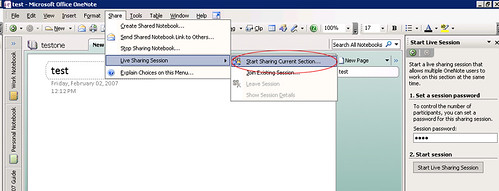
1. In the menu bar, select Share > Live Sharing Session > Start Sharing Current Section.

2. In the "Start Live Session" task pane, enter a session password and click Start Live Sharing Session button.
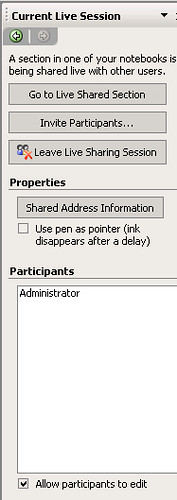
3. In the "Current Live Session" task pane, you will find following three options:
a. Go to Live Shared Section
b. Invite Participants
c. Leave Live Sharing Session


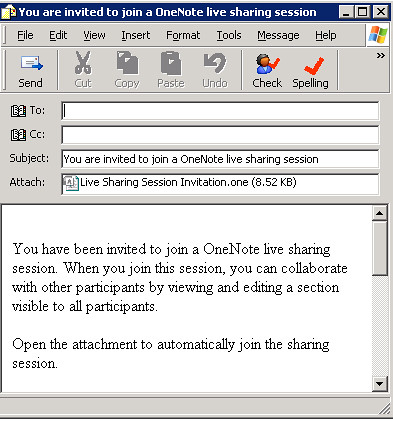
4. Click Invite Participants to invite more people to this live session. Clicking the Invite Participants button will open an email editor. Insert users in the To: field and click Send.

Shared Notebook
Ok, time to see SharePoint in action!
1. In the menu bar, select Share > Create Shared Notebook...

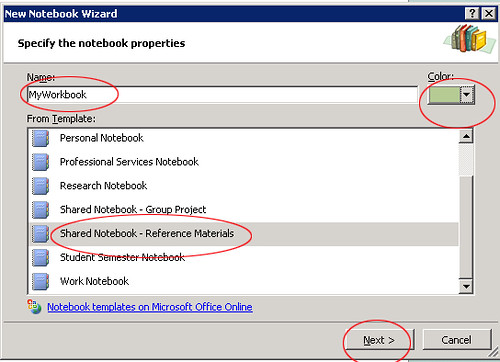
2. Enter a name for your shared notebook in the Name field and select a color of your choice. There are different templates available for you to select. I selected Shared Notebook - Reference Materials. Click Next to proceed.

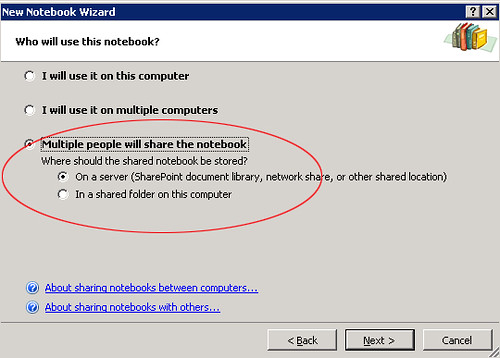
3. Select the third option Multiple people will share the notebook and select On a server ... in the other options.

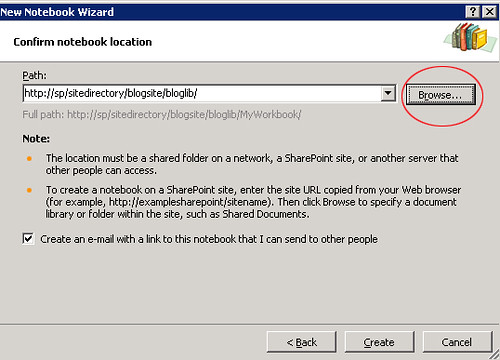
4. Click the Browse... button to select a destination path. It should be a document library in SharePoint. Check the checkbox shown at the bottom if you want to create an email to send to other people and finally, click Create.

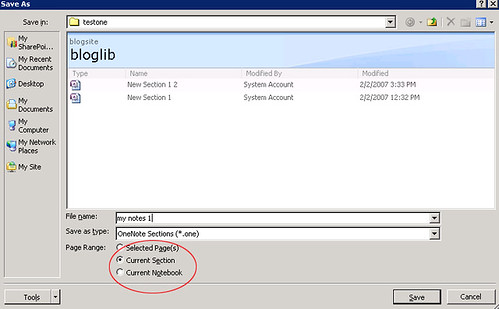
5. This will create a shared notebook in SharePoint. Now, to test sharing, create a note and type something in it and select File > Save As from the menu bar.

6. Enter a file name and select a page range. You have following options to save the note book:
a. Selected Pages.
b. Current Section
c. Current Notebook.

Select an option and click the Save button. This will save your note in SharePoint. If you open SharePoint, you will see your note saved in there. Click the link to the saved note in SharePoint and it will open the note in OneNote. Now, everyone in the document library will have access to the note. You can manage permissions in the document library. Contributors will be able to modify your saved notebook.
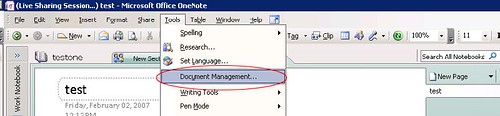
7. You can manage SharePoint document library right from within OneNote. Select Tools > Document Management from the menu bar.

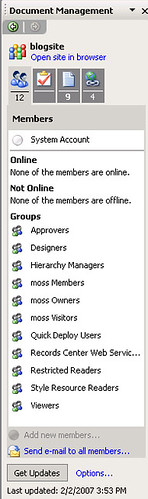
8. This will open Document Management task pane on the right.

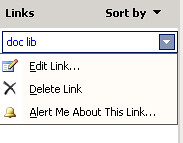
The first icon shows the members of the document library and number below the icon is the total number of members in the document library. The second icon shows the tasks. The third icon shows the number of items in the library and the number below the icons shows the number of items. The fourth option shows the links. Move mouse over one of the listed links, a drop down will appear, open it. You will see three options. You can edit the listed link or even delete it permanently and if you want to be notified about the changes in this link, select the third option. It will take you to the alerts setting page in SharePoint where you will be able to subscribe to the alert.

That's it. There are a couple of nice tips on Olya's blog:
1. Assigning Outlook tasks from OneNote shared notebooks
2. Enabling searching of OneNote content on SharePoint sites (My favorite!)
Published Friday, February 02, 2007 7:51 PM by ssa

Comment Notification

If you would like to receive an email when updates are made to this post, please register here
Subscribe to this post's comments using RSS

Comments


ssa said:

Bob Mixon has written an excellent post on OneNote and SharePoint. Here is the link to his blog:


-SSA
February 7, 2007 2:04 AM

Saturday, August 25, 2007

I am back!

Hi
This is just a test post. I am trying to open my wings and thinking about restarting blogging. I got so disappointed when this server crashed and I lost all my SharePoint posts that I couldn't muster enough confidence to publish any new posts. :)
There were about 200 posts on this blog. Unfortunately, I hadn't taken any backup as I was using this blog as a backup tool. Anyway, I have retrieved some posts from the internet cache and I will try to publish the content very soon. I have been quite inactive during the last 4-5 months. I changed gears and became a consultant and made my life miserable ;). Before becoming a consultant, I always had enough time to play with my SharePoint installation, explore things, write about SharePoint, discuss ideas with my blog readers, publish code and there was lot more to do but life has become very busy after becoming a consultant. It's a pretty fast paced world out there. I still explore new things, new ideas but unfortunately don't find time to publish anything. I may not be able to write full length articles any more but I promise I will try to post as many tips as I can frequently.
 And yeah, I forgot to mention, I became a MOSS MVP in April this year. Did I mention that before? Anyway, stay tuned!!
 Regards,

 SSA

Wednesday, June 20, 2007

Could not find installable ISAM

Small tip!! Some times things so small take up so much of your precious time that you start getting frustrated. The following is a common error people get when trying to connect with an Excel or Access DB using the Oledb:

Could not find the installable ISAM.

I agree there could be many reasons for this error to occur. For example, the drivers on your system are corrupted, in that case, you will have to reinstall the drivers or may the registry entries are corrupted. For that you will have to modify the registry. (If that is the case, you may want to look at the MS KB article that provides the solution). In my case, the problem was that I was using the latest Office 2007 and I was trying to connect to an Excel file using the following connection string:

string excelConnectionString = @"Provider=Microsoft.Jet.OLEDB.4.0;Data Source=C:Tempmetadata.xls;Extended Properties=Excel 12.0";

Can you locate the problem in the connection string? Give it a try! The string is syntatically correct then where is the problem? The problem is with the "Extended Properties". If I replace "Excel 12.0" with "Excel 8.0" (which is the correct version actually), the problem goes away. I was about to modify my registry when luckily I noticed the correct version and modified my connection string and everything started working fine.

The error message that one gets is so generic that anyone will be easily deluded and this wastes time.

Good luck to anyone stuck with the same or similar problem!

Friday, June 15, 2007

Using "AND" in SPQuery

Level: Beginner

Ok, here is a small tip for the beginners. If you are trying to search records based on two values, for example, "select * from list where a=1 and b=2" then how will you write its equivalent using the SPQuery object. Here is the sample:

SPQuery query = new SPQuery();
query.Query = "<Where><And><Eq><FieldRef Name='Field1'></FieldRef><Value Type='Number'>1</Value></Eq><Gt><FieldRef Name='Field2'></FieldRef><Value Type='Number'>0</Value></Gt></And></Where>";

This query will find records where Field1 = 1 and Field2 > 0.

So you have learnt two new things, using "And" and "Gt".

Sunday, June 10, 2007

What is the datatype of the Yes/No field?

Value type has to be provided when writing a query for the SPQuery object. How do you access a Yes/No field or let's put it in another way! What is the data type of the Yes/No field in SharePoint? The data type is "Boolean" and the value has to be provided as 1 or 0. Providing a value of Yes or No or True or False will not work. Ok, sometimes the query fails even if you provided the value as 1 or 0. You get a strange error. Following is the error message:

"One or more field types are not installed properly. Go to the list settings page to delete these fields"

To fix this error, you will have to use the internal name of the field in the spquery. Yes, internal names can be different from the names displayed in the site. For example, internal name for the field "My Field" can be "My_x0020_Field".

Here is the sample code:

SPQuery query = new SPQuery();
query.Query = "<Where><Eq>FieldRef Name='My_x0020_Field'></FieldRef><Value Type='Boolean'>1</Value></Eq></Where>";

This will search for records where "My Field" has the value of 1 (Yes).

Easiest way to find the internal name of the field is to open the "New" form in browser and then view it's source. Right-click any where in the "New" form to open the context menu and select "View Source". You will find the fields along with their internal names near the end of the source file.

-SSA

Thursday, May 10, 2007

MS CRM and SharePoint 2007 Integration

Rehman Gul, a SharePoint blogger and a friend, has written an article about the integration of CRM with SharePoint. Following is his article:
 ******** Article ***************
http://www.microsoft.com/presspass/press/2007/mar07/03-12Day1DynamicsOfficePR.mspx
Lets have a walkthrough of how can we connect with MS CRM using SharePoint's Business Data Catalog (BDC) and Web Parts.
First of all we need an XML definition file to connect with CRM Database. Writing these files is difficult and error prone. You can easily find tools over the internet that will provide you with the ability to create Application Definitions for MOSS 2007. One such tool could be found here.
Here is the file I am going to use for the purpose of this exercise. This sample metadata XML defines various entities for MS CRM 3.0 database. If you have downloaded Dynamics Snap-ins, you can get one such file already present on your disk. If you intend to use the file that I am using, remember to change the Server and Database Names in it. They have been marked within the file.changes are required at the line 27 and 29.First of all we need to import this definition file to MOSS (Microsoft Office SharePoint Server) 2007.
Go to central Administration. It is usually created at the port 12779. The Url should look something like this:

untitledb.jpg
On the left Navigation Column click "SharedServices1" link. If its not there, you can create one clicking "Shared Services Administration" link on the left navigation column. "SharedServices1" site should look like this:
untitled1b.jpg
Under "Business Data Catalog" click "Import application definition". Following screen appears:
untitled2b.jpg
Browse and select the definition file from your disk. Keep the default settings and click "Import". This will initiate the upload process and take some time.
untitled3b.jpg
After the file has been uploaded you can view the file clicking "View applications" under "Business Data Catalog".
untitled4b.jpg
Now go to the site where you want to provide CRM connectivity. Click " Site Actions" and "Edit Page".
untitled5b1.jpg
Click "Add a Web Part".

untitled6b1.jpg

From the list select "Business Data List" web part and click "Add".

untitled7b.jpg

Click "open the tool pane" link in the "Business Data List" web part.
untitled8b.jpg
Click "Browse" icon right next to the "Type" text box displayed on the right top.
untitled9b.jpg
Select any "Business Data Type" and click "Ok".
untitled10b.jpg
Click "Ok" at the bottom of the options displayed in the right column.
untitled12b.jpgHere is what you should see:untitled13b.jpg
Just add the value in the empty text box that you want to fetch from the CRM Database and click "Retrieve Data". You are connected to MS CRM through your MOSS 2007.
Hope you enjoyed this post..I'll continue on SharePoint's integration with other Microsoft Products..hope to see you again..it's bye for now..:)